Shipping guide
How to show an estimated shipping date on a Shopify product page
Add a useful ship date to Shopify product pages, place the app block near the buy button, and check variants, templates and checkout for conflicts.
Choose the promise before choosing the block
People searching for an estimated delivery date on a Shopify product page may need either a dispatch promise or an arrival estimate. Decide which one you can support before choosing the wording.
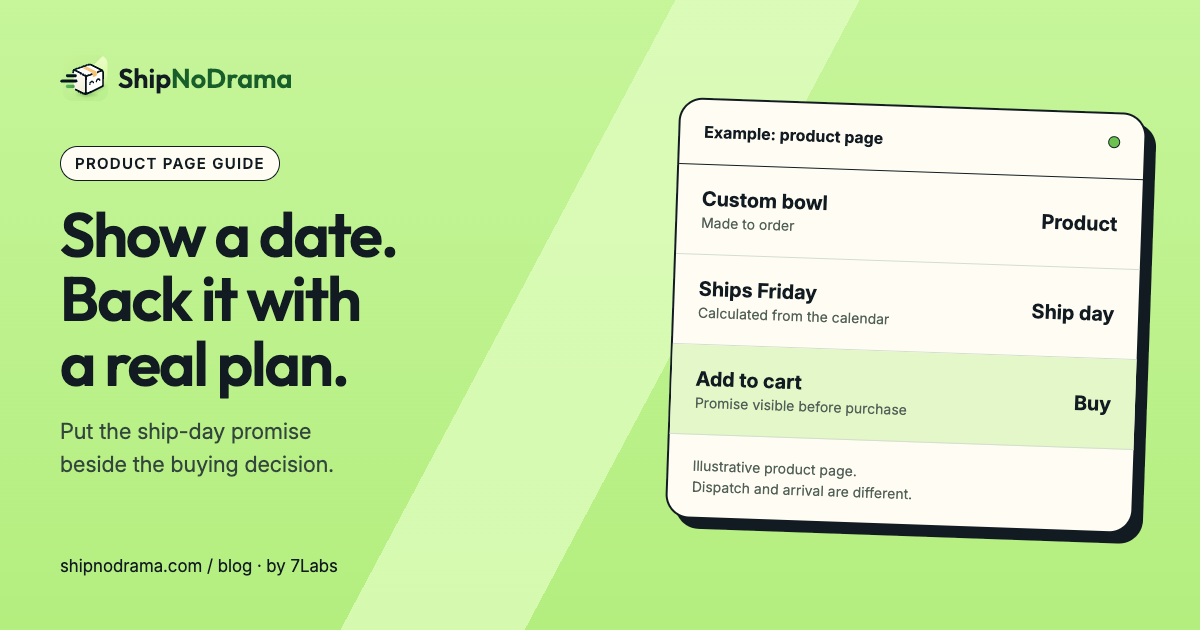
“Ships Friday” means the parcel can leave on Friday. “Estimated delivery next week” needs a suitable carrier transit allowance as well. A date that looks precise but ignores preparation can be less useful than a clearly explained range.
We make ShipNoDrama. Its focus is the calculated ship day and the fulfillment workflow behind it. Start by setting work days, ship days, cutoff, closures and product-group lead times. Before live features reach the store, complete the app’s Terms acceptance and plan setup. The product-page message should describe that calculation.
Put the date close to the buying decision
In a compatible Shopify theme, an app block can be positioned in a product section through the theme editor. Open the product template you intend to use, add the app’s block near the purchase controls, and save the theme.
A useful placement is after the product options and before or beside the purchase button. The customer should see any preparation delay before committing, including on a phone. Keep the explanation short and give the date a clear label.
- Configure the calendar and product rules in the app.
- Open the current theme’s relevant product template.
- Add the ShipNoDrama ship-date block to a compatible section.
- Save, then inspect the published storefront.
- Test a product with a known delay and a ready-stock product.
Check more than the default product page
A block added to one template may not appear on products using another. Check custom product templates, alternate buying layouts and any quick-buy surface that customers actually use.
Then change variants and quantities. A visible date is useful only if it still makes sense for the selected product and the work required. Avoid hard-coded text that stays the same while the customer chooses a slower option.
When switching the published theme, verify the app integration again. Installing an app does not prove the new theme has its block in the right place. The app’s setup check can help identify missing placements, but a storefront check is still needed.
Review checkout and after-purchase messages separately
A product-page block does not rewrite Shopify’s native shipping options. Compare the date with checkout estimates, the thank-you page and the order status page. If you use app-calculated rates, test them with the product rules and intended destination.
Keep one clear owner of the ship-day calculation. Two date apps or an old “ships tomorrow” snippet can contradict the accurate block you just added.
Common questions
Can I add a static date with custom theme text?
Yes, but you own every update. Static text will not automatically follow cutoffs, preparation, closures or capacity unless you build that behavior.
Does the product-page date stop an order shipping early?
No. Display and fulfillment control are different jobs. Verify the app’s supported order-hold workflow as well.
For the meaning of each date, read processing time versus shipping time.