Shipping guide
How to set holiday shipping cutoff dates for your Shopify store
Set holiday order deadlines from preparation, capacity and carrier transit time, then show useful Christmas shipping cutoffs in your Shopify store.
Work backward from the day the gift needs to arrive
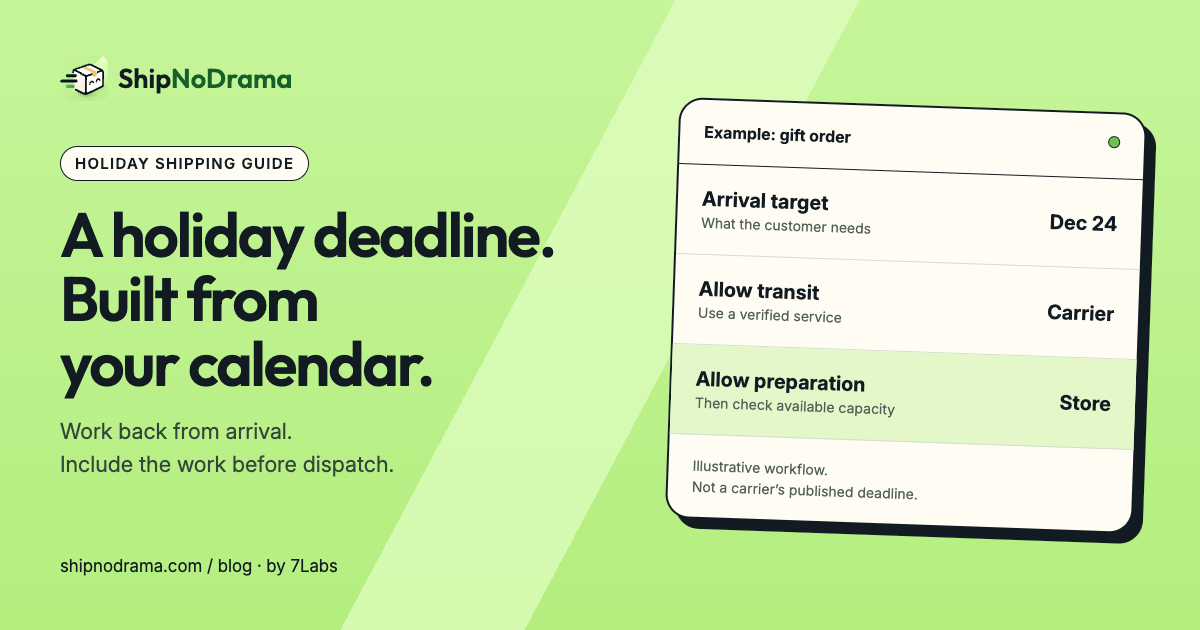
A carrier’s last posting date answers when a parcel must reach that carrier. Your customer needs to know when to place the order. Those dates can differ by days if you make, personalize or prepare the product first.
Choose the arrival target and destination, allow an appropriate carrier transit window, then find the last day you can hand over the parcel. From there, work backward through your preparation days, order cutoff, closures and production capacity. Keep a margin for uncertainty rather than promising the narrowest possible window.
Do not copy last year’s Christmas deadlines into this year’s banner. Carrier services, destinations and operating calendars change. Verify the service you actually use and clearly separate your estimate from a carrier-backed guarantee.
Give slower products an earlier order deadline
Consider a gift collection with ready-made cards, personalized mugs and a preorder. A single store-wide deadline can be appropriate for the cards and too late for the other two.
| Product | What changes its deadline? |
|---|---|
| Ready stock | Dispatch calendar and transit allowance |
| Personalized gift | Preparation time and available production slots |
| Preorder | Release date, then the next eligible dispatch day |
For a hypothetical three-day preparation process and a five-business-day transit allowance, the customer must order before those eight working stages can finish. That does not mean subtracting eight calendar days: weekends, closures and the cutoff can move the answer.
Show the deadline where the customer chooses the product
Put a product-specific deadline near the purchase controls. Use the site-wide bar for the standard store promise and make the difference clear for products that take longer. A generic banner should never quietly override a slower product’s date.
We make ShipNoDrama. Its holiday deadlines work from the calendar, delivery-day allowance and product rules; products with preparation or release dates can get an earlier last order day. On eligible plans, the holiday bar can show a standard deadline across the store. Enable its app embed on the current theme and save the theme settings.
A banner being enabled is not the same as a deadline being displayable. Check that the target date is in the future and within the app’s display window, and that the configuration has been published. Follow the merchant guide for the actual controls.
Review the deadline as your calendar fills up
Production capacity is part of the promise. If the last available day fills up, the safe deadline can move earlier. Before a promotion, test a ready item, a personalized item and a mixed cart. Check the product page, checkout and after-purchase message together.
- Verify carrier services and destinations instead of publishing a universal arrival guarantee.
- Add closures and realistic preparation days.
- Check the day before and after the order deadline.
- Review the banner after switching themes.
- Plan how to tell customers when an existing order’s day changes.
Common questions
Can I use the same Christmas deadline for every product?
Only if the underlying preparation, stock availability and dispatch conditions are the same. A made-to-order item normally needs its own earlier deadline.
Does a holiday bar change Shopify’s checkout delivery estimate?
No. The visible bar and checkout estimates are separate surfaces. Review native shipping options and any delivery-date app before relying on a consistent arrival message.
For the underlying timeline, read processing time versus shipping time.