Shipping guide
Shopify processing time vs shipping time: what to promise customers
Separate preparation, dispatch and transit time in your Shopify store, with a worked example and a checklist for product pages and checkout.
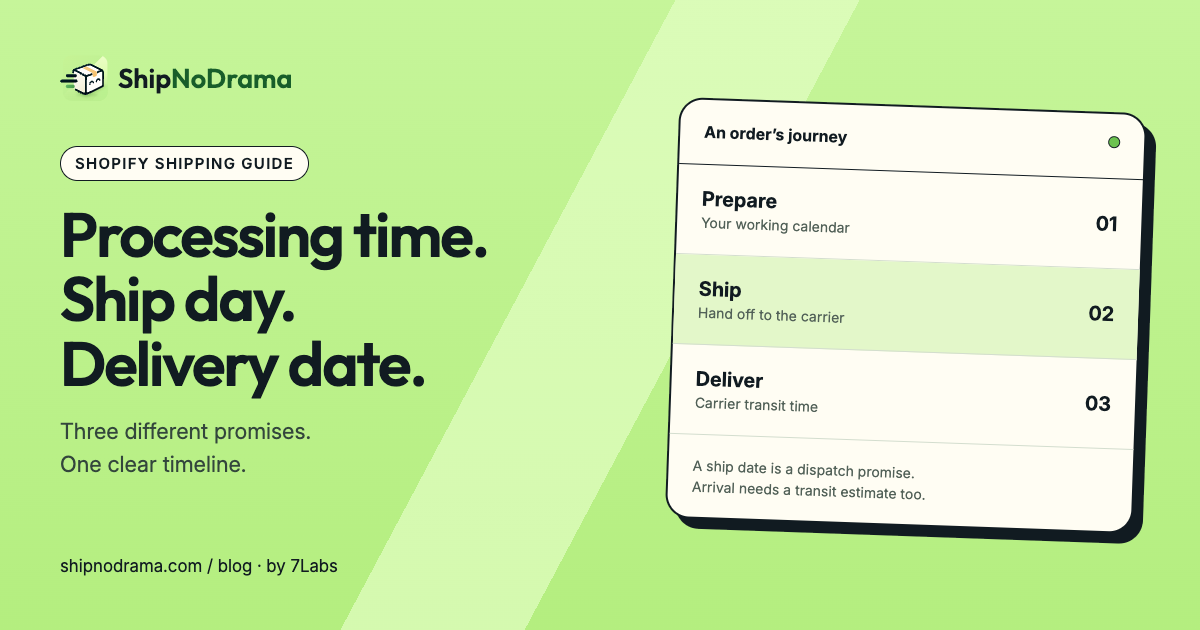
Processing, shipping and delivery are different promises
A customer asks, “When will my order arrive?” Your team needs to answer two questions first: when can it leave, and how long will the carrier need after that?
- Processing time: the work before dispatch, such as making, preparing, checking and packing.
- Ship date: the day the parcel can leave your store or warehouse.
- Transit time: the carrier’s journey after dispatch. Add this to the ship date for an estimated arrival window.
“Ships Friday” is clearer than “3-day shipping” when your product takes several days to make. The second phrase can sound like a delivery promise even if you meant carrier transit only.
A worked example: a Tuesday order that ships Friday
Suppose your team works Monday through Friday, the order is placed before Tuesday’s cutoff, and the product needs three working days of preparation. In a calendar that starts counting preparation from the next working day, Wednesday is day one, Thursday day two, and Friday day three. With Friday dispatch available, the ship date is Friday.
A carrier service with two to four business days in transit gives a separate arrival estimate. Check whether that service operates on weekends and whether a closure changes either end of the journey. The dates in this example assume no holidays and no capacity limit.
Now place the same order after the cutoff. Its starting point moves. A static “ships in three days” sentence cannot explain the difference as clearly as a date calculated from your calendar.
Make the promise consistent across the store
- Set the store’s time zone, cutoff, work days, ship days and closures.
- Group products by preparation time rather than giving every product the slowest lead time.
- For preorders, add the release date. For limited production, set the daily capacity.
- Decide whether a mixed order waits for everything or sends ready items first.
- Show the ship date on the product page and after purchase. Review any separate checkout delivery estimates.
In ShipNoDrama, ship days and order holds work with Shopify’s existing shipping prices. Optional app-calculated checkout rates are a separate setup and require Shopify carrier-calculated shipping eligibility. Enabling a product-page date does not automatically change Shopify’s native checkout estimates.
Test the complete customer journey
Try an order before the cutoff, one after it, and one that crosses a weekend or closure. Repeat with a ready product and a slower product in the same cart. Check the product page, checkout and order status page; compare what the customer sees with the date your packing team uses.
If dates disagree, find which system owns each promise. A native shipping option, another delivery-date app and your product-page text can all describe different clocks. Choose a clear owner and verify the result in a real checkout.
For product-specific lead times, read our made-to-order shipping guide. See the ShipNoDrama setup guide for calendar settings, product groups and checkout checks.