Setup tutorial
Make all week, ship twice a week: configure Shopify working days and ship days
Set separate working days and dispatch days for a handmade Shopify shop, then test preparation times against Tuesday and Thursday carrier collections.
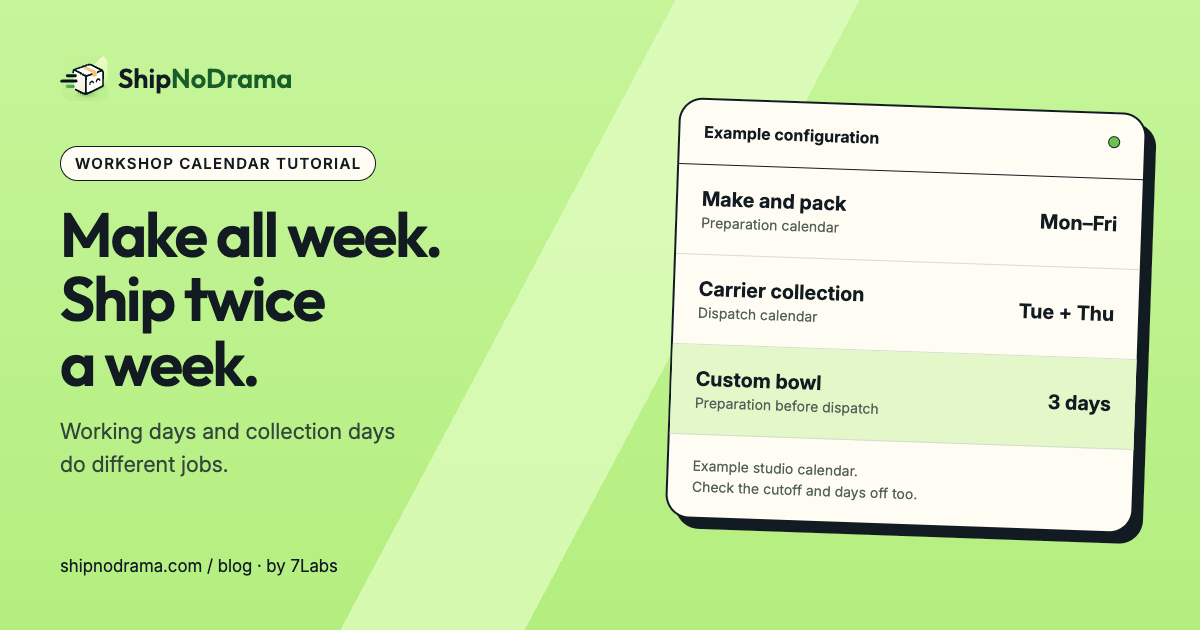
A small ceramics studio works Monday through Friday but takes parcels to the carrier only on Tuesdays and Thursdays. A custom bowl needs three working days of preparation. If the studio uses only its collection days as working days, the lead time becomes longer than the production process.
The solution is to describe work and dispatch separately. We make ShipNoDrama, and this tutorial uses its current setting labels. Calendar settings, product preparation and live holds need Starter or above. You can configure and simulate the recipe in Free Sandbox before selecting a live plan.
Use two calendars for two jobs
| Setting | Example value |
|---|---|
| Days you ship | Tuesday, Thursday |
| Days you work | Monday–Friday |
| Last order time | 14:00 in the studio’s time zone |
| Days every order needs before it can ship | 0 |
| Custom bowls group | Made or packed after the order; 3 working days |
Configure the studio
- Open Ship days and select Tuesday and Thursday under Days you ship. Set the last order time to 14:00 and check the time zone against the studio, rather than the shopper’s country.
- Expand More options (most stores don’t need these). Select Monday through Friday under Days you work. Leave the default preparation at 0 so the example’s extra work comes from the bowl group. Save ship days.
- In Product groups, add Custom bowls. Choose They’re made or packed after the order, set How many working days do they take? to 3, and use Pick products for the relevant bowls.
- Leave ready-stock accessories outside this group. Check Home for products matching more than one group and resolve accidental overlap.
- Keep Wait, and ship everything together if a bowl and an accessory should leave in one parcel. Display the ship day using the product block and review your customer-facing processing policy.
Follow a bowl through the calendar
An order on Monday, January 4, 2027 at 11:00 counts from Monday. Three working days after that are Tuesday, Wednesday and Thursday, so the bowl is ready and can ship Thursday, January 7. The order day is the starting point; it is not preparation day one.
An order on Tuesday, January 5 at 11:00 is ready Friday, January 8. Friday is a working day but not a dispatch day, so it ships Tuesday, January 12. An order on Monday after 14:00 also starts Tuesday and reaches the same Tuesday dispatch. A ready-stock accessory ordered Monday before the cutoff can leave on the first Tuesday instead.
Test the boundaries, then go live
- In Try a cart, test a bowl on Monday before the cutoff, Tuesday before the cutoff and Monday after it. Compare the preparation steps with the dates above.
- Test an accessory alone and a bowl-plus-accessory cart. Confirm that the selected mixed-order policy matches how you actually pack.
- Add Thursday as a day off. For the Monday bowl, preparation skips that closure and the next dispatch is Tuesday. Remove the test closure or use Undo.
- Open the product page on a phone and confirm that its date agrees with the simulator. A theme template used by another product may need the block added separately.
- Complete the Terms and plan steps, review Go live, and start holding orders only after the tests match your real collections.
Questions for a changing workshop schedule
Should I add one working day just for a carrier collection?
Set work days to the days you can actually prepare orders. A ship day should also make operational sense with that calendar; do not invent working availability simply to force an earlier date.
Will increasing preparation move existing orders?
Existing promises stay while their days remain possible. A longer preparation setting applies to new orders; an actual day off can move affected promises later. Review the queue when the business changes. See the made-to-order shipping guide for the broader workflow.